Fix IPTV 4K Buffering: 12 Proven Ways to Stop Freezing & Stream Smoothly (2026 Guide)

Streaming live television in pristine Ultra HD 4K or 8K resolution transforms home entertainment, delivering stadium-grade clarity, hyper-vibrant HDR contrast, and cinematic immersion. Whether you are following intense English Premier League fixtures, NFL Sunday games, or blockbuster cinema premieres, high-resolution streaming offers an unmatched viewing experience. However, the immense visual fidelity of modern IPTV feeds requires significantly greater system throughput than conventional video. When your stream stutters, pauses, drops frames, or gets stuck on a spinning wheel during crucial moments, the frustration is immediate.
Many subscribers assume that an intermittent or buffering stream is solely the fault of their service provider. In reality, modern IPTV delivery relies on a delicate multi-node pipeline spanning international transit backbones, local Internet Service Provider (ISP) routing, home wireless networking, hardware video decoders, and media player software configurations. If any single component in this chain underperforms, playback suffers.
If you are using a premium, high-bitrate service such as Strong 8k tv, ensuring that your local environment is tuned to handle sustained Ultra HD data streams is essential. This guide delivers a comprehensive, technician-grade diagnostic framework and 12 proven, step-by-step solutions to eradicate 4K and 8K IPTV buffering permanently in 2026.
Fix IPTV 4K Buffering Guide
The Technical Anatomy of 4K & 8K IPTV Video Streams
To troubleshoot buffering effectively, it is critical to understand how an IPTV stream travels from the broadcaster's encoding rack to your living room television.
Unlike on-demand video platforms such as Netflix, Prime Video, or YouTube—which can pre-buffer several minutes of compressed video content ahead of your playback position—live IPTV operates on a continuous, near-real-time timeline. Live broadcasts generally maintain a razor-thin buffer window of only 3 to 10 seconds to keep broadcast delay as close to zero as possible.
[Broadcast Source]
       │
       ▼
[High-Speed Transcoder (H.265 / HEVC / AV1)]
       │
       ▼
[Tier-1 Origin Backbone Server]
       │
       ▼
[Edge CDN Edge Clusters & Load Balancers]
       │
       ▼
[Your Internet Service Provider (ISP) Peering Gateway]
       │
       ▼
[Home Optical / Coaxial Gateway Router]
       │
       ▼
[Local LAN: Ethernet (Cat6) / Wi-Fi (5 GHz / 6 GHz)]
       │
       ▼
[Streaming Hardware: Nvidia Shield / Fire TV / Apple TV / Smart TV]
       │
       ▼
[Hardware GPU Decoder & Memory Buffer (TiviMate / Smarters)]
       │
       ▼
[OLED / QLED 4K Display (Smooth 60 FPS Output)]
Unicast Streaming vs. Multicast Delivery
Traditional cable television networks utilize physical coaxial cabling and dedicated RF frequencies to deliver a single stream to an entire neighborhood simultaneously. Regardless of how many neighbors tune in to the Super Bowl or a championship bout, the cable signal remains stable because bandwidth is reserved at the physical layer.
Internet Protocol Television (IPTV), by contrast, relies almost exclusively on unicast streaming over public or private TCP/IP and UDP packet networks. In a unicast architecture, each connected subscriber maintains an individual, dedicated data session with an edge CDN server. When millions of viewers watch the same live event concurrently, the bandwidth load on servers, transit exchanges, and ISP interconnects multiplies rapidly.
Bitrate, Compression & Codec Profiles
A 4K broadcast is not a single uniform standard. The amount of data required depends on the compression codec and broadcast frame rate:
- Legacy H.264 (AVC): Requires between 25 Mbps and 45 Mbps for acceptable 4K quality, placing extreme pressure on local network infrastructure and older hardware decoders.
- Modern H.265 (HEVC): The gold standard for high-tier IPTV networks like Strong 8k tv. HEVC delivers twice the compression efficiency of H.264, providing breathtaking 4K picture quality at stable bitrates between 18 Mbps and 30 Mbps, or high-tier 60 FPS sports feeds at 25 to 35 Mbps.
- Next-Generation AV1: An ultra-efficient open-source codec increasingly utilized for high-density 8K and 4K streaming, reducing bandwidth demands by another 20% while demanding modern GPU hardware decoding chips.
When your connection drops below the stream's baseline bitrate even for a fraction of a second, the player's memory buffer empties completely, triggering an instant freeze.
The Diagnostic Framework: Pinpointing the Real Bottleneck
Before adjusting random settings on your router or television, you must isolate which tier of your connection is falling short. You can systematically test each link using this diagnostic triage:
- The Single-Channel Test: Does the buffering happen on every single channel, or only on a specific live channel? If 99% of your live TV channels play smoothly and only one specific regional feed stutters, the root cause is almost certainly upstream at the broadcaster's ingest source or transcoding encoder.
- The Resolution Contrast Test: Switch from a 4K 60FPS sports stream to the equivalent 1080p FHD or 720p HD stream. If the 1080p stream runs without a single interruption while the 4K stream freezes continually, your streaming hardware is failing to decode the heavy HEVC profile, or your local Wi-Fi lacks sustained throughput.
- The Multi-Device Cross-Check: Run the identical stream on a secondary device—such as a smartphone, tablet, or laptop connected to the same Wi-Fi network. If the phone plays flawlessly while your Smart TV stutters, the television's internal processor or weak built-in Wi-Fi chip is the culprit.
- The Time-of-Day Audit: If your streaming performance is flawless at 10:00 AM on a Tuesday but collapses into constant buffering between 8:00 PM and 11:00 PM on Friday evening, you are experiencing local ISP peering congestion or ISP traffic throttling.
 4K IPTV Network Setup
12 Proven Ways to Fix IPTV 4K Buffering
Follow these 12 comprehensive steps to diagnose and eliminate playback interruptions.
Fix 1: Cold Power-Cycle Devices and Clear Gateway Cache
The simplest troubleshooting step is often the most effective. Network hardware and consumer streaming devices run continuous embedded operating systems that accumulate cached routing tables, DNS resolution logs, and fragmented memory over weeks of continuous operation.
To perform an authentic cold power-cycle:
- Turn off your streaming hardware (Amazon Fire TV Stick, Nvidia Shield, Apple TV, or Smart TV).
- Unplug the power cable from the back of the streaming device—do not simply toggle the remote standby switch.
- Unplug your home optical/coaxial modem and Wi-Fi router from their electrical wall sockets.
- Wait a full 60 to 90 seconds to allow all capacitors on the motherboards to discharge completely, flushing volatile RAM.
- Plug the modem and router back in. Allow 3 to 5 minutes for your gateway to re-establish a clean handshake with your ISP's central distribution node.
- Plug your streaming device back in and relaunch your IPTV player application.
This process refreshes your local IP address lease, clears corrupt ARP cache tables, and flushes temporary operating system memory leaks.
Fix 2: Check Real Throughput, Jitter, and Packet Loss
Most users test their internet by opening a standard browser speed test and looking only at the headline download number. If they see "100 Mbps," they assume their internet is incapable of buffering.
However, standard web browsing and speed tests download data in short, bursty bursts. Live 4K IPTV demands an uninterrupted, continuous pipe of data packets delivered in chronological sequence. Three metrics dictate your real streaming performance:
- Sustained Download Bandwidth: Must consistently exceed the stream's bitrate with at least a 50% safety margin. For high-end 4K 60FPS feeds, you need a stable 35+ Mbps dedicated exclusively to that screen.
- Latency (Ping): The time it takes for a data packet to travel from your device to the server and back. Ideal latency for IPTV is under 40ms. Latency above 100ms creates playback instability.
- Jitter: The variation in packet arrival times. High jitter (above 15ms) means packets arrive erratically in clusters, causing the video decoder to run out of sequential frames.
- Packet Loss: The percentage of data packets dropped along the network route. Any packet loss above 0.5% causes immediate pixelation, audio popping, or complete video freezing.
Use detailed network diagnostics such as the Cloudflare Speed Test (speed.cloudflare.com) or Fast.com to inspect your bufferbloat and packet stability. For a detailed exploration of bandwidth requirements across different screen formats, read our dedicated guide on what internet speed you need for IPTV in 2026.
Fix 3: Eradicate Local Household Network Congestion
In an average modern household, dozens of smart appliances, mobile devices, and computers compete for router throughput simultaneously.
Unseen background tasks can saturate your upstream and downstream channels:
- Cloud storage synchronizations (Google Drive, iCloud, OneDrive, Dropbox).
- Automated game updates on PlayStation 5, Xbox Series X, or Steam PCs.
- BitTorrent or peer-to-peer applications running quietly in the system tray of home computers.
- 4K video streams running on secondary bedrooms or tablet devices.
- High-definition home security cameras uploading constant live feeds to the cloud.
To resolve this, log in to your router's administrative control panel (typically 192.168.1.1 or 192.168.0.1) and configure Quality of Service (QoS) rules. Assign high-priority traffic classification to the MAC address of your primary IPTV streaming device, ensuring that large file downloads on other household computers never throttle your live television stream.
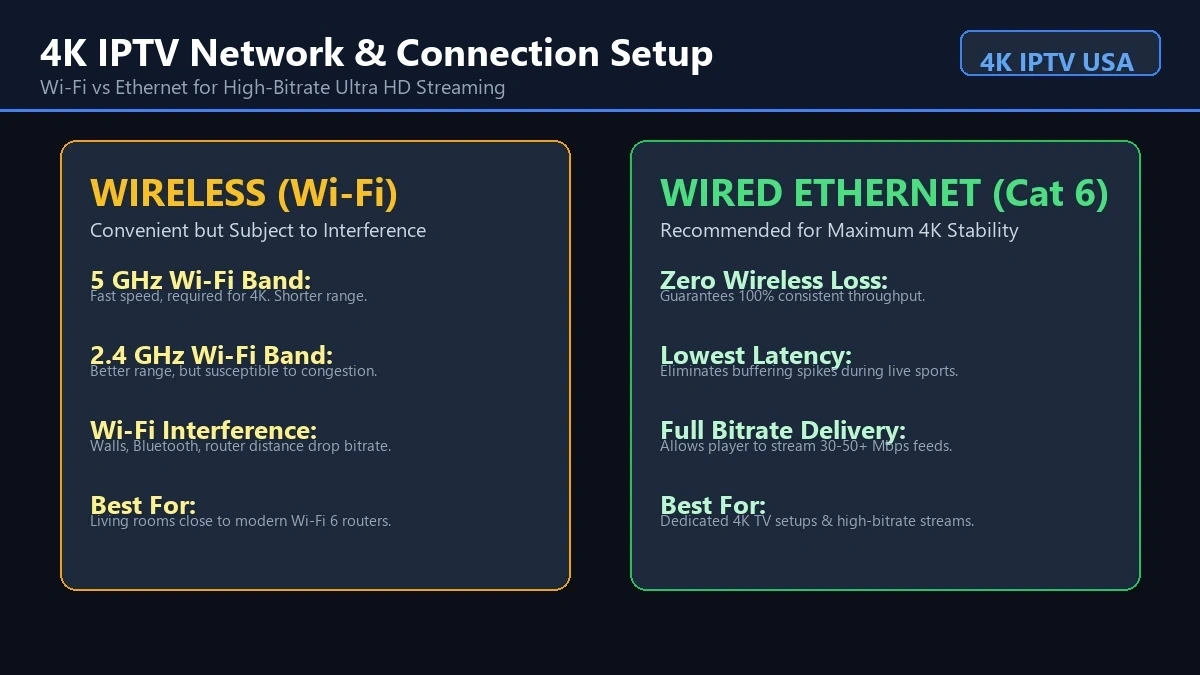
Fix 4: Transition from Wi-Fi to Dedicated Cat6/Cat7 Ethernet
Wi-Fi is inherently susceptible to physical obstacles, electromagnetic interference, and dynamic signal degradation. Microwaves, baby monitors, neighbor Wi-Fi networks, and concrete or brick walls create signal reflection that degrades continuous 4K bitrates.
Whenever feasible, connect your streaming device directly to your router using a shielded Cat6 or Cat7 Ethernet cable.
Connection Medium Comparison for 4K / 8K IPTV:
┌────────────────────┬──────────────┬──────────────┬──────────────────────────┐
│ Connection Type    │ Max Stability│ Jitter Risk  │ Real-World 4K Suitability│
├────────────────────┼──────────────┼──────────────┼──────────────────────────┤
│ Direct Cat6 Cable  │ 99.9%        │ < 2ms        │ Flawless / Recommended   │
│ 5 GHz Wi-Fi 6      │ 92.0%        │ 5ms - 20ms   │ Excellent (Close Range)  │
│ 2.4 GHz Wi-Fi 4    │ 65.0%        │ 25ms - 80ms  │ Unusable for 4K Streams  │
│ Powerline Ethernet │ 75.0%        │ 15ms - 45ms  │ Inconsistent (Wiring Var)│
└────────────────────┴──────────────┴──────────────┴──────────────────────────┘
Crucial Hardware Note for Smart TV Owners: Many leading Smart TVs (including premium LG OLED and Samsung QLED sets) are manufactured with legacy 10/100 Mbps Ethernet ports rather than Gigabit interfaces. If your TV's built-in Ethernet port caps out at 100 Mbps and introduces high internal latency, purchasing an inexpensive USB 3.0 to Gigabit Ethernet adapter (such as a Realtek RTL8153 chip) can often triple your network processing throughput.
Fix 5: Optimize Dual-Band and Wi-Fi 6 Networks
If running an Ethernet cable through your living room is impossible, you must optimize your wireless configuration:
- Migrate Exclusively to the 5 GHz or 6 GHz Band: Never allow a 4K streaming device to connect to a 2.4 GHz network. While 2.4 GHz offers long transmission range, its narrow bandwidth and heavy frequency congestion make it incapable of maintaining smooth 4K 60FPS video.
- Separate Your Network SSIDs: Avoid unified router configurations where both 2.4 GHz and 5 GHz share the same network name. When SSIDs are merged, streaming devices frequently downshift to the slower 2.4 GHz band automatically whenever signal attenuation dips. Name your networks separately (e.g.,
Home_Fiber_5G) and connect your TV only to the high-frequency band. - Change Wireless Channel Width: In your router's wireless settings, lock the 5 GHz channel width to 80 MHz or 160 MHz to maximize data throughput, and scan for low-congestion channels away from neighbor interference (channels 36–48 or 149–161).
Fix 6: Tune IPTV Player Buffer Size and Caching Parameters
Most streaming media players—such as TiviMate IPTV Player, IPTV Smarters Pro, and XCIPTV—allow users to manually adjust how many seconds of video data are held in system RAM before playback begins.
If your buffer setting is too low (e.g., "None" or "0.5 seconds"), any momentary microscopic packet delay forces the video to freeze instantly. Conversely, setting the buffer too high on low-spec hardware can cause audio desynchronization and sluggish channel zapping.
Recommended Buffer Settings in TiviMate:
- Open TiviMate and navigate to Settings > Playback.
- Locate the Buffer size configuration.
- If set to "None" or "Small," change it to "Medium" (approx. 3–5 seconds) or "Large" (approx. 7–10 seconds).
- For high-bitrate 4K sports channels, a "Large" buffer provides a protective safety cushion that absorbs momentary network micro-bursts without interrupting picture fluidness.
Recommended Buffer Settings in IPTV Smarters Pro:
- Open Settings > Player Settings.
- Select the underlying playback engine: switch from Built-in Player to Hardware Accelerated Player (ExoPlayer).
- Adjust stream format from MPEG-TS to HLS (.m3u8) if available, as HLS automatically chunks video into adaptive segments that handle network jitter with greater resilience.
If you are setting up an Android device for the first time, consult our detailed walkthrough on how to set up IPTV on Android TV & Google TV to ensure your media player is configured correctly from day one.
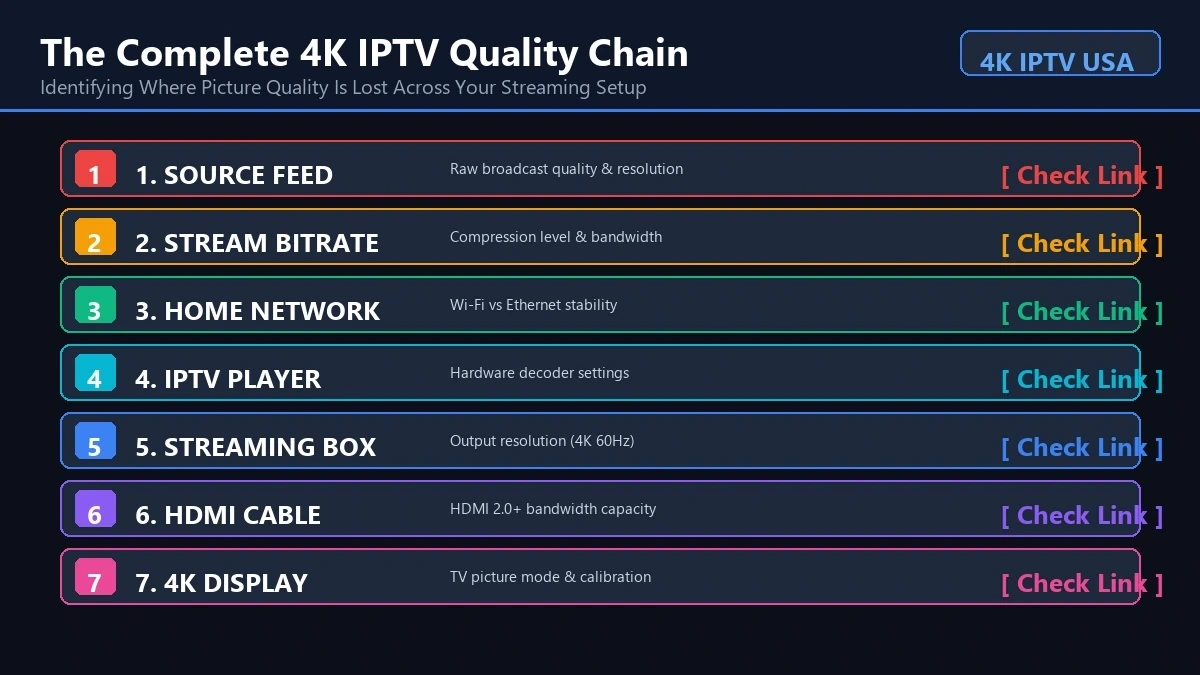 4K IPTV Quality Troubleshooting
Fix 7: Hardware vs. Software Video Decoding Acceleration
The processor inside your streaming box contains two distinct decoding components:
- Software Decoder (CPU): Uses raw processor compute cycles to decompress video. Software decoding struggles immensely with modern 10-bit HEVC 4K streams, resulting in dropped frames, extreme heat, audio lag, and device lockups.
- Hardware Decoder (GPU / VPU): Uses dedicated silicon circuitry optimized specifically for real-time video decompression.
In your player app settings (e.g., TiviMate, OTT Navigator, or VLC), verify that your video decoder is set to Hardware (HW) or Hardware+ (HW+). Never select "Software (SW)" when attempting to play 4K or 8K content.
If hardware decoding still stutters on an inexpensive Android TV stick, your device's chipset may simply lack native hardware support for modern 4K profile levels. Upgrading to a capable streaming unit like the Amazon Fire TV Stick 4K Max, Google Chromecast with Google TV (4K), or the flagship Nvidia Shield TV Pro provides immediate, permanent relief.
Fix 8: Clear Application Cache and Free Up Device Memory
Streaming devices run on lightweight operating systems with limited onboard storage and RAM. Over months of viewing, applications like TiviMate, Downloader, Netflix, and system utilities accumulate hundreds of megabytes of cached thumbnails, temporary EPG XMLTV databases, and memory fragments.
When free internal storage drops below 1 GB, Android OS cannot allocate adequate temporary paging files for high-bitrate video decoding.
How to Clear App Cache on Android TV and Fire TV:
- Navigate to Settings on your streaming device.
- Select Applications > Manage Installed Applications.
- Choose your IPTV player application (e.g., TiviMate or IPTV Smarters Pro).
- Click Clear Cache (Important: Do not click "Clear Data" unless you wish to wipe your login credentials and channel playlists).
- Repeat this cache-clearing process for other storage-heavy apps on your device.
- Install a background process management tool or reboot the device to terminate orphaned processes consuming RAM.
Fix 9: Optimize DNS Resolvers to Bypass ISP Filtering
When your IPTV app connects to a live stream, it translates domain names into numerical IP addresses via a Domain Name System (DNS) server. By default, your home router uses the DNS servers supplied automatically by your Internet Service Provider.
Many commercial ISPs utilize slow, overburdened DNS infrastructure that introduces lookup latency. Worse, some regional ISPs actively use DNS poisoning to inject artificial latency into high-bandwidth media streams during peak sporting events.
Switching your router or streaming device to secure, world-class public DNS resolvers instantly enhances connection speed:
- Cloudflare DNS:
- Primary:
1.1.1.1 - Secondary:
1.0.0.1
- Primary:
- Google Public DNS:
- Primary:
8.8.8.8 - Secondary:
8.8.4.4
- Primary:
- Quad9 (Security Focused):
- Primary:
9.9.9.9 - Secondary:
149.112.112.112
- Primary:
You can assign these DNS addresses globally within your home router's WAN settings, or configure them directly inside the network settings of your Android TV or Fire TV device.
Fix 10: Defeat ISP Throttling with High-Speed VPN Protocols
Internet Service Providers monitor macroscopic traffic patterns across their networks. When deep packet inspection (DPI) detects gigabytes of continuous UDP or high-bitrate video traffic flowing to media delivery servers during peak evening hours (8:00 PM – 11:00 PM), ISPs frequently throttle individual connection bandwidth to prevent wider neighborhood node congestion.
A premium Virtual Private Network (VPN) encrypts all data packets between your streaming device and the VPN server. Because your ISP can only see unreadable encrypted traffic, they cannot identify that you are streaming 4K video, rendering automated throttling algorithms useless.
Critical Rules for Using a VPN with 4K IPTV:
- Use WireGuard Protocol: Avoid legacy OpenVPN (TCP/UDP) protocols whenever possible. WireGuard uses state-of-the-art cryptography that achieves 300% faster throughput with minimal CPU overhead, making it ideal for 4K and 8K video streaming.
- Select Geographically Close Servers: Connect to a VPN server located close to your physical location (or close to your IPTV provider's server farm) to maintain sub-30ms ping times.
- Avoid Free VPNs: Free VPN services monetize by selling user logs, enforce strict bandwidth caps, and route millions of users through congested servers, which will dramatically worsen buffering.
If you are exploring whether your current service handles sports without freezing, check our comprehensive guide on the best IPTV for live sports in the USA.
Fix 11: Match Refresh Rates (Auto Frame Rate / AFR)
Have you ever noticed that a 4K sports stream appears to run without freezing, yet fast-moving footballs, basketballs, or hockey pucks seem to stutter or vibrate unnaturally across the grass?
This visual artifact is not traditional network buffering—it is frame rate judder. European sports broadcasts operate natively at 50 FPS (PAL format), whereas American broadcasts run at 60 FPS (NTSC format), and cinema movies play at 24 FPS.
If your television display is locked at a static 60 Hz refresh rate while playing a 50 Hz European football stream, your TV is forced to repeat every fifth video frame to synchronize playback. This creates micro-stutter that viewers frequently mistake for buffering.
How to Enable Auto Frame Rate (AFR):
- In TiviMate: Go to Settings > Playback > Auto frame rate (AFR) and toggle it ON. Set the switch delay to 500ms.
- In Fire TV Settings: Go to Display & Sounds > Display > Match Original Frame Rate and set to ON.
- When enabled, your television panel will momentarily adjust its physical refresh rate to match the broadcast source exactly (switching seamlessly between 24 Hz, 50 Hz, and 60 Hz), providing cinematic, liquid-smooth motion.
Fix 12: Stream Format Protocol Switching (HLS vs. MPEG-TS)
High-tier IPTV providers deliver channels across multiple transmission formats, primarily MPEG-TS (.ts) and HLS (.m3u8).
- MPEG-TS: Transmits an unbroken continuous transport stream. It delivers lightning-fast channel switching (under 1 second) and ultra-low latency, but has zero tolerance for network jitter. If an internet packet drops, the video immediately stutters.
- HLS (HTTP Live Streaming): Chunks live video into sequential 2-to-6 second encrypted video files delivered over standard HTTP/HTTPS. While channel zapping takes slightly longer, HLS is remarkably resilient against unstable Wi-Fi and minor packet drops because the player seamlessly buffers discrete chunks ahead of playback.
Inside advanced players like TiviMate or XCIPTV, you can adjust the playlist stream output format from MPEG-TS to HLS. If your connection is prone to minor fluctuations, switching to HLS will instantly eliminate intermittent pausing.
Technical Specifications: Resolution, Bitrate & Codec Matrix
Understanding the real mathematical requirements of modern television streaming prevents unrealistic network expectations. Use this technical reference matrix to evaluate your home network readiness:
| Resolution Format | Native Frame Rate | Video Compression Codec | Average Stream Bitrate | Peak Burst Bitrate | Minimum Recommended Dedicated Internet Speed |
|---|---|---|---|---|---|
| Standard Definition (480p) | 25 / 30 FPS | MPEG-2 / H.264 | 2 – 4 Mbps | 6 Mbps | 10 Mbps |
| High Definition (720p HD) | 30 / 60 FPS | H.264 (AVC) | 5 – 8 Mbps | 12 Mbps | 20 Mbps |
| Full HD (1080p FHD) | 30 FPS | H.264 / H.265 | 8 – 14 Mbps | 20 Mbps | 30 Mbps |
| Full HD Sports (1080p60) | 60 FPS | H.265 (HEVC) | 12 – 18 Mbps | 28 Mbps | 40 Mbps |
| Ultra HD 4K (2160p UHD) | 30 FPS | H.265 (HEVC) | 18 – 25 Mbps | 40 Mbps | 50 Mbps |
| Ultra HD 4K Sports (2160p60 HDR) | 60 FPS | H.265 / AV1 | 25 – 35 Mbps | 55 Mbps | 75 Mbps |
| Ultra 8K UHD (4320p) | 60 FPS | H.265 / AV1 | 50 – 80 Mbps | 120 Mbps | 150+ Mbps |
Key Takeaway: Notice the difference between "Average Bitrate" and "Peak Burst Bitrate." During complex, high-action scenes (such as confetti falling across a stadium or intense action sequences with rapid camera pans), the video encoder requires a sudden burst of data up to double the normal bitrate. If your connection has zero headroom above the average bitrate, the stream will buffer during the most thrilling moments of the game.
Step-by-Step Emergency Game-Day Buffering Checklist
When you are 10 minutes away from kickoff or the main event fight and your stream begins to freeze, you do not have time for complex router reconfigurations. Execute this rapid 5-minute emergency triage:
- Step 1: Force-Stop the IPTV App: Do not just exit to the home screen. On your Fire TV or Android TV, go to Settings > Applications > Manage Installed Applications > [Your IPTV App] > Force Stop.
- Step 2: Clear Application Cache: In that same menu, click Clear Cache immediately.
- Step 3: Disconnect Other Household Devices: Temporarily toggle Wi-Fi off on household smartphones, tablets, and gaming consoles to free up 100% of your router's wireless spectrum.
- Step 4: Switch From 4K to the 1080p Backup Feed: Premium providers like Strong 8k tv offer multiple resolution links for major sporting events. Switching to the 1080p 60FPS feed drops data overhead by 40% while preserving crystal-clear high-frame-rate fluidity.
- Step 5: Toggle Your VPN Server Location: If your ISP is actively throttling the broadcast, launch your VPN app, select a nearby city server running the WireGuard protocol, and reconnect.
4K IPTV Troubleshooting Diagnostic Table
Use this diagnostic quick-reference table to match specific symptoms with their root cause and verified technical resolution:
| Visual / Audio Symptom | Most Likely Root Cause | Verification Step | Immediate Technical Solution |
|---|---|---|---|
| Audio continues playing normally, but video freezes on a still frame | Hardware Video Decoder Overload | Check if streaming box feels physically hot or is an older device | Switch player settings from Software to Hardware (HW) decoding; lower stream resolution to 1080p. |
| Video and audio freeze together; spinning wheel appears every 15–30 seconds | Insufficient Sustained Bandwidth or Wi-Fi Packet Loss | Run Fast.com speed test directly on the streaming device | Connect via Cat6 Ethernet cable; move router closer; increase player buffer size to "Large". |
| Rapid micro-stutter during camera pans, but no spinning wheel | Refresh Rate Mismatch (Frame Rate Judder) | Notice if stutter happens primarily on European 50Hz sports | Enable Auto Frame Rate (AFR) matching in TiviMate or Fire TV display settings. |
| Stream works flawlessly all morning, but buffers constantly between 8 PM and 11 PM | Evening ISP Peering Congestion or Active ISP Throttling | Test stream over mobile phone cellular hotspot | Activate a premium VPN using the WireGuard protocol to bypass ISP traffic shaping. |
| Channel fails to load entirely; displays "Parser Exception" or "403 Forbidden" | Temporary Ingest Source Drop or Expired DNS Cache | Test other channels in the identical category | Clear app cache, update playlist/EPG in player settings, or contact support for stream restart. |
| High-pitched audio popping or screeching during 4K playback | Surround Sound Audio Codec Conflict (Dolby Digital+ / Passthrough) | Check if audio is set to "Optical Passthrough" without a receiver | Change audio output inside IPTV player settings from "Direct Passthrough" to "Stereo PCM Downmix". |
Why Server Architecture Matters: The Strong 8k tv Advantage
While optimizing your local hardware and home network resolves the vast majority of streaming issues, the foundational stability of your stream ultimately relies on your provider's infrastructure.
Budget, low-tier IPTV providers cut costs by reselling overcrowded server lines hosted in single data centers. When thousands of subscribers tune in to an el-Clásico football clash or a heavyweight boxing title fight, single-server setups experience severe CPU saturation and bandwidth exhaustion, causing unavoidable freezing across the entire subscriber base.
Strong 8k tv utilizes an enterprise-grade infrastructure engineered specifically to withstand massive concurrent traffic surges:
- Distributed Anti-Freeze 10.0 Technology: Proprietary routing algorithms that balance traffic loads across redundant global server nodes in real time. If an upstream European or North American transit line experiences latency, your connection is rerouted in milliseconds without dropping the stream.
- Dedicated Tier-1 Gigabit Pipes: High-capacity unthrottled bandwidth ensures that demanding 4K 60FPS and 8K broadcasts maintain their full 25–35 Mbps bitrates even during peak viewing hours.
- Comprehensive Device Compatibility: Optimized stream feeds engineered to integrate natively with TiviMate, IPTV Smarters Pro, Apple TV, Smart TVs, and MAG boxes.
If you are tired of troubleshooting a subpar provider, explore our IPTV subscription plans or test our streams firsthand by contacting our team for a free trial via WhatsApp.
Frequently Asked Questions
Conclusion
4K and 8K IPTV streaming represents the cutting edge of modern home entertainment, offering stunning visual fidelity and global channel access that traditional cable operators cannot match. However, streaming uncompressed Ultra HD live video requires a disciplined, high-performance local network setup.
By systematically applying the 12 technical solutions detailed in this guide—switching to wired Cat6 Ethernet, optimizing Wi-Fi channels, fine-tuning player buffer sizes, enabling hardware video decoding, and bypassing ISP throttling with WireGuard VPN protocols—you can eliminate buffering and enjoy flawless live sports, movies, and series.
To complement your optimized home network with enterprise-grade broadcast stability, explore our premium channel lineups on Strong 8k tv. Review our flexible subscription packages, browse our catalog of over 50,000 live channels & 120,000+ VODs, or check out our complete installation guides to elevate your viewing experience today.