How to Set Up IPTV on Android TV & Google TV: Complete Step-by-Step Guide (2026)
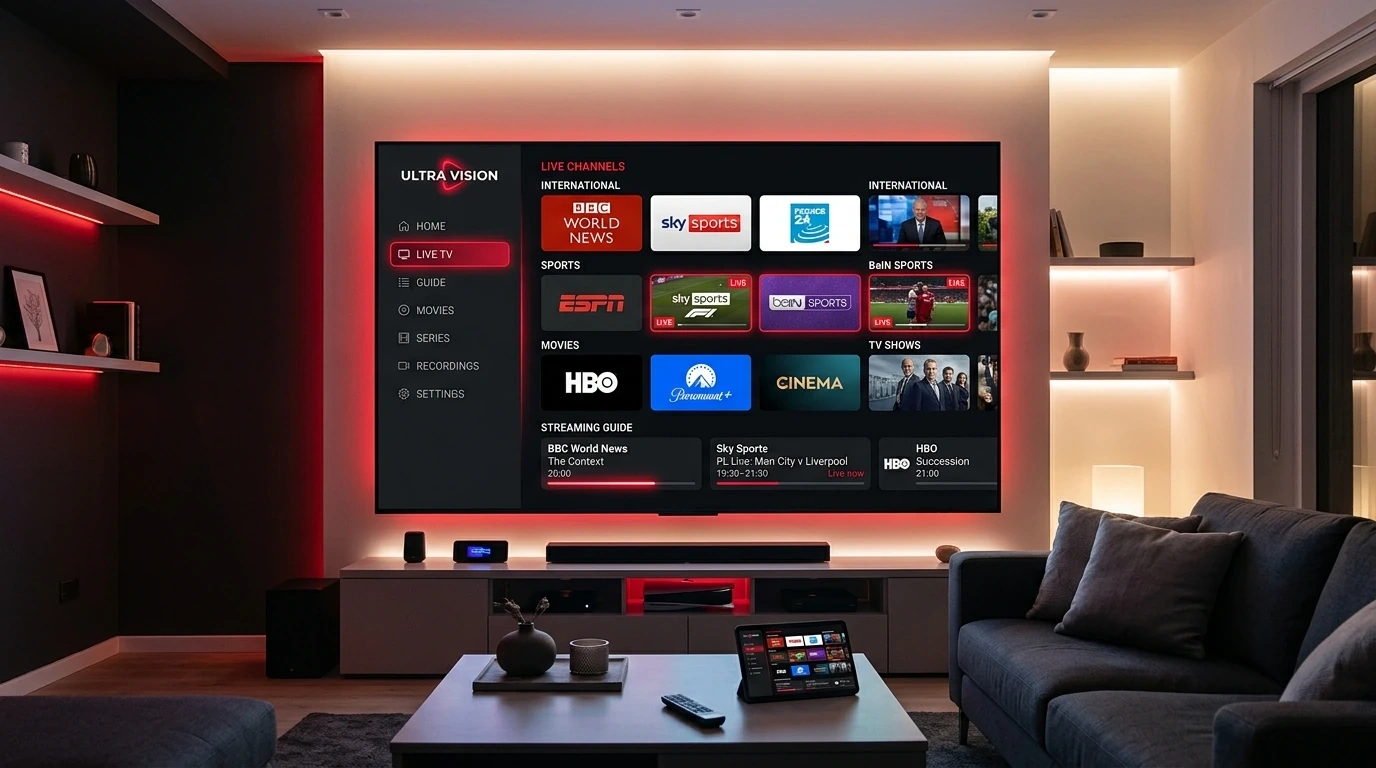
Android TV and its modern evolution, Google TV, have cemented their position as the undisputed premier operating systems for modern home television entertainment. Built on the open, flexible Android foundation and integrated seamlessly into premium televisions from Sony, TCL, Hisense, and Philips—as well as market-leading standalone devices like the Nvidia Shield TV Pro and Chromecast with Google TV (4K)—the platform delivers exceptional visual capability and app versatility.
For viewers seeking to cut the cord on restrictive, expensive traditional cable packages, pairing an Android TV device with a premier IPTV service like Strong 8k tv unlocks unprecedented freedom. With access to over 50,000 live international channels, major sports packages in 60 FPS, and massive on-demand libraries spanning 120,000+ films and series, the viewing possibilities are limitless.
However, setting up IPTV on Android TV is not as simple as downloading an all-in-one app from a commercial app store. Because IPTV operates on open streaming protocols, the ecosystem separates the IPTV media player (the software interface you interact with) from the IPTV service provider (the broadcast server infrastructure providing the channel streams).
This comprehensive 2026 tutorial guides you step-by-step through the entire setup process. You will learn how to select the best IPTV player application, install software via Google Play or sideloading, configure both Xtream Codes API and M3U playlists, set up automated TV guides (EPG), and optimize advanced playback settings to guarantee crystal-clear, zero-buffering 4K and 8K playback.
How to Set Up IPTV on Android TV & Google TV
Understanding the Android TV IPTV Architecture
To ensure a seamless installation, it is crucial to understand the two fundamental halves of an IPTV setup:
- The IPTV Player Application: This is the software client installed on your Android TV or Google TV box (such as TiviMate, IPTV Smarters Pro, or XCIPTV). The player provides the graphical user interface (GUI), channel grid, electronic program guide (EPG), favorites organization, and underlying video rendering engine. A player application does not come with any channels or content on its own.
- The IPTV Service Subscription: This is your active subscription with a high-tier broadcast provider like Strong 8k tv. The provider supplies you with authentication credentials—typically an Xtream Codes API (server URL, username, and password) or an M3U Plus URL—that link your player software directly to high-speed global broadcast server clusters.
[IPTV Service Provider: Strong 8k tv]
               │
               ▼ (Delivers Xtream Codes API / M3U Playlist Stream Feeds)
[Home Android TV / Google TV Device]
               │
               ▼ (Loads Stream Data Into Player Engine)
[IPTV Player App: TiviMate / IPTV Smarters / XCIPTV]
               │
               ▼ (Hardware GPU Decoding & Audio Passthrough)
[Crystal Clear 4K/8K Live TV & EPG on Your Living Room Screen]
Operating System Variations: Android TV vs. Google TV vs. AOSP Boxes
While the setup workflow is identical across the ecosystem, you may encounter subtle interface differences based on your hardware:
- Google TV: The modern interface found on newer Sony Bravia, TCL, and Hisense televisions, as well as the Chromecast 4K. It features a content-first home screen with personalized algorithmic recommendations.
- Stock Android TV: The clean, classic interface found on the Nvidia Shield TV, older smart TVs, and certified streaming media boxes.
- Generic AOSP (Android Open Source Project) Boxes: Budget, uncertified Android boxes often imported from overseas that run a modified smartphone version of Android rather than the official television-optimized OS. While capable, they frequently lack Google Play Store certification and require sideloading via APK files.
Pre-Setup Requirements & Hardware Audit
Before beginning the installation, ensure you have gathered the necessary hardware, network connections, and account details:
1. Hardware Verification
- Smart TV or Streaming Box: An Android TV or Google TV television running Android OS 9.0, 10, 11, 12, or newer, or a dedicated streaming device (e.g., Nvidia Shield TV Pro, Chromecast with Google TV 4K, Xiaomi TV Box S 2nd Gen, or ONN 4K Pro).
- Adequate Storage: Verify that your device has at least 1.5 GB of free internal storage space available. Streaming players require cache space to download channel logos, EPG program metadata, and short temporary video buffers.
2. Network Stability
- A stable broadband internet connection delivering at least 35–50 Mbps for uninterrupted 4K Ultra HD streaming, or 100+ Mbps for multi-device households.
- Whenever possible, connect your streaming box directly to your home router using a shielded Cat6 Ethernet cable. If using Wi-Fi, ensure your device is connected strictly to the 5 GHz or 6 GHz wireless band. If you are unsure about your home bandwidth capacity, consult our guide on what internet speed you need for IPTV in 2026.
3. Service Account Credentials
Obtain your active subscription details from Strong 8k tv. Your setup email or WhatsApp message will contain:
- M3U Playlist URL: A long web address ending in
.m3uor.m3u8. - Xtream Codes API Credentials:
- Server URL: (e.g.,
http://stream-domain.com:8080) - Username: Your unique account username.
- Password: Your unique account password.
- Server URL: (e.g.,
- XMLTV EPG URL: (Optional web link for populating channel schedules if not handled automatically by the API).
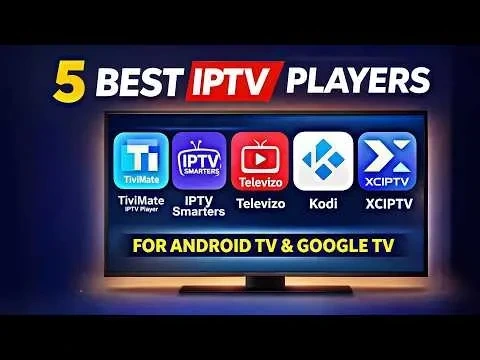
Top 5 IPTV Players for Android TV & Google TV in 2026
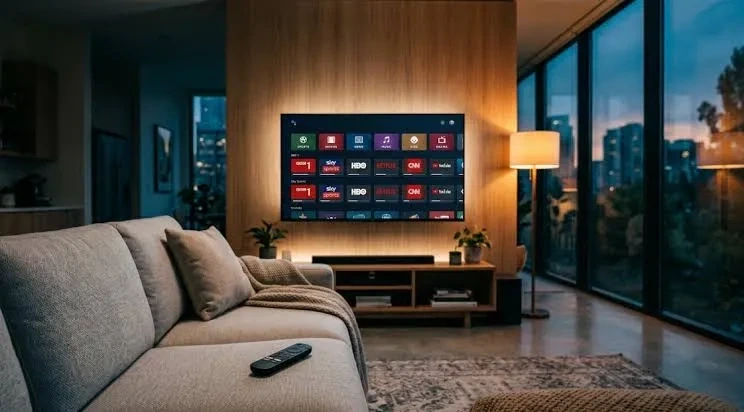
Choosing the correct media player determines the fluidity of your daily viewing experience. Below is an expert breakdown of the top five television-optimized players available in 2026:
 Android TV IPTV Player Comparison
1. TiviMate IPTV Player (The Undisputed Gold Standard)
Without question, TiviMate remains the finest IPTV player ever developed for Android TV and Google TV. Designed from the ground up exclusively for television screens and remote controls, TiviMate delivers an interface that rivals or surpasses high-end commercial cable set-top boxes.
- Key Features: Sleek modern EPG grid, lightning-fast channel zapping, multi-view (watch up to 9 channels simultaneously on one screen), auto frame rate (AFR) matching, customizable buffer sizes, scheduled local recording, catch-up TV support, and seamless multi-playlist management.
- Availability: Available directly on the official Google Play Store (Free version available; Premium lifetime or annual unlock highly recommended).
2. IPTV Smarters Pro (The User-Friendly Classic)
IPTV Smarters Pro is an immensely popular, highly accessible player known for its straightforward tile-based dashboard separating Live TV, Movies, and Series into dedicated visual hubs.
- Key Features: Native Xtream Codes API integration, integrated EPG viewer, master search functionality, multi-user profile support, parental control locks, and integrated external player switching (VLC / MX Player).
- Availability: Frequently available on Google Play, or easily sideloaded via APK.
3. XCIPTV Player (Modern Dual-Engine Player)
XCIPTV delivers an aesthetically stunning, modern dashboard interface featuring built-in dual player engines (ExoPlayer and VLC Player) out of the box.
- Key Features: Highly customizable dashboard layout, smooth VOD info cards with IMDb ratings and trailers, automated EPG syncing, and native backup/restore capabilities.
- Availability: Available on Google Play Store and official developer APK mirrors.
4. OTT Navigator IPTV (The Power User's Dream)
For technical enthusiasts who demand granular control over every aspect of stream decoding, buffer sizing, codec filtering, and channel sorting, OTT Navigator is an extraordinary application.
- Key Features: Studio-grade picture-in-picture (PiP), dynamic channel grouping, adaptive bitrate switching, fine-tuned hardware acceleration controls, and comprehensive audio track switching.
5. iMPlayer (The Feature-Rich Contender)
iMPlayer is a premium, cable-style IPTV interface that provides extensive customization, multi-screen streaming, cloud playlist syncing, and native catch-up support.
Method 1: Installing IPTV Players Directly from Google Play Store
If your desired player (such as TiviMate or IPTV Smarters Pro) is officially listed on your regional Google Play Store, installation takes under two minutes:
- Turn on your Android TV or Google TV device.
- From the main home screen, navigate to the Apps tab or launch the Google Play Store.
- Click the Search icon (magnifying glass) or press the Google Assistant voice button on your remote control.
- Type or speak "TiviMate IPTV Player" (or your chosen player).
- Select the application from the search results and click Install.
- Wait for the operating system to download and install the package.
- Once finished, click Open to launch the player for the first time.
[Google Play Store] ──▶ Search: "TiviMate" ──▶ Click: "Install" ──▶ Click: "Open"
Method 2: Sideloading IPTV Players via the Downloader App
Certain high-performance IPTV applications, specialized APK versions, or region-restricted utilities may not appear in your regional Google Play Store. In such cases, sideloading—the standard Android process of installing applications directly from a verified APK file—is simple, safe, and completely standard.
To sideload applications, we use Downloader by AFTVnews, the most trusted utility in the streaming community.
 Installing IPTV Player on Android TV
Step 1: Install the Downloader Application
- Open the Google Play Store on your Android TV.
- Search for "Downloader by AFTVnews".
- Click Install.
Step 2: Enable Developer Permissions (Install Unknown Apps)
Modern Android operating systems require you to explicitly grant permission for Downloader to install APK software packages:
- Navigate to your device Settings (gear icon) > System (or Device Preferences).
- Go to About > scroll down to Android TV OS Build (or Build Number).
- Click the OK / Select button on your remote control repeatedly 7 times. A prompt will appear stating: "You are now a developer!"
- Press Back on your remote and return to Settings > Apps > Security & Restrictions > Install Unknown Apps (or Special App Access).
- Locate Downloader in the list and toggle the permission to Allowed (ON).
Step 3: Download and Install the Player APK
- Launch the Downloader application from your home screen.
- Grant the app permission to access storage when prompted.
- In the main URL/Search box, enter the official download URL or verified quick code for your player (for example, TiviMate's official direct mirror:
tivimate.comor the official Downloader quick code). - Click Go. Downloader will fetch the latest APK package.
- Once the download completes, a system dialogue will automatically prompt you: click Install.
- After installation, click Done, and select Delete to remove the temporary APK file from your internal storage, freeing up valuable memory.
Step-by-Step Setup: Configuring Xtream Codes API (Recommended)
Connecting your player to Strong 8k tv via the Xtream Codes API is overwhelmingly superior to typing a massive 150-character M3U URL.
The Xtream Codes protocol delivers distinct advantages:
- Categorizes Live TV, Movies, and Series into organized, clean visual directories automatically.
- Automatically maps the Electronic Program Guide (EPG) without requiring a separate XMLTV link.
- Synchronizes channel updates, new movie additions, and stream URL changes dynamically every time you launch the application.
- Displays your subscription expiration date and active connection status directly on your dashboard.
Follow this configuration walkthrough inside TiviMate (the process is nearly identical in IPTV Smarters Pro and XCIPTV):
Step 1: Add Playlist
Launch TiviMate. On the welcome screen, select Add Playlist.
Step 2: Select Server Protocol
You will be presented with three connection options:
- M3U playlist
- Xtream Codes
- Stalker Portal
Select Xtream Codes.
Step 3: Enter Your Credentials Accurately
Carefully enter the three fields provided in your Strong 8k tv welcome confirmation:
- Server Address: Enter the full server domain including the protocol and port (e.g.,
http://example-server.com:8080). Double-check that you do not add a trailing slash (/) at the end. - Username: Enter your case-sensitive account username.
- Password: Enter your case-sensitive account password.
- Ensure the checkbox for Include VOD (Video on Demand) is checked if you wish to access the complete library of 120,000+ movies and series.
┌────────────────────────────────────────────────────────┐
│               XTREAM CODES API LOGIN                   │
├────────────────────────────────────────────────────────┤
│ Server URL : http://domain-strong.shop:8080           │
│ Username   : user_8k_vip                               │
│ Password   : ••••••••••••                              │
│                                                        │
│ [X] Include Video On Demand (VOD)                      │
│                                                        │
│                  [ NEXT / LOGIN ]                      │
└────────────────────────────────────────────────────────┘
Step 4: Name the Playlist and Complete Processing
- Enter a playlist name (e.g., "Strong 8k tv VIP").
- Click Done.
- TiviMate will initiate an encrypted handshake with the server. A progress wheel will display: "Processing channels... Processing movies... Processing TV series... Processing TV guide."
- Depending on your internet speed and the immense size of our catalog (over 50,000 channels and 120,000+ VOD titles), this initial sync will take approximately 30 to 60 seconds.
- Once completed, click Done to enter the live TV viewing interface.
Step-by-Step Setup: Configuring an M3U Playlist
If your player application only supports raw playlist URLs, or if you prefer a streamlined channel lineup, you can connect via an M3U Plus link:
- Launch your IPTV player and select Add Playlist > M3U Playlist.
- Select Enter URL.
- Using the on-screen virtual keyboard (or the Android TV mobile remote app on your phone for easy copy-pasting), input your complete M3U link:
http://stream-domain.com:8080/get.php?username=YOUR_USER&password=YOUR_PASS&type=m3u_plus&output=ts - Important Parameter Note: Always ensure the link contains
type=m3u_plus. The "Plus" designation instructs the server to include channel categories, logos, and EPG channel identity tags. - Click Next.
- Set your playlist update frequency to "Once a Day" or "At App Startup" to ensure your channel list always reflects real-time broadcast additions.
- Click Done to finalize the channel ingest.
Setting Up and Optimizing the Electronic Program Guide (EPG)
A television experience without an interactive TV Guide feels incomplete. The Electronic Program Guide (EPG) populates channel schedules, show descriptions, air times, and episode metadata.
If you used the Xtream Codes API, your EPG is linked automatically. If you connected via M3U, you may need to assign your XMLTV EPG URL manually:
How to Configure EPG in TiviMate:
- Navigate to Settings > EPG.
- Select EPG Sources > Add Source.
- Enter the XMLTV URL provided by your provider (e.g.,
http://stream-domain.com:8080/xmltv.php?username=USER&password=PASS). - Under EPG Settings, enable:
- Update on app start: Enabled (ensures fresh schedules every time you watch).
- Update on playlist change: Enabled.
- Update interval: Set to 24 Hours.
- EPG Time Offset Adjustment: If the schedule appears offset by one or two hours (e.g., the guide shows a soccer match starting at 7:00 PM when it actually kicks off at 8:00 PM), navigate to Settings > EPG > EPG Sources > Select your source > Time Offset. Adjust the slider by +1, +2, -1, or -2 hours until your local clock aligns with the program timeline.
Advanced Video Playback & Performance Tuning
To extract the absolute highest picture fidelity and eliminate buffering on Android TV, configure these advanced settings inside your media player:
1. Hardware Video Acceleration
Always ensure your playback engine uses your device's physical graphics processing silicon:
- In TiviMate: Navigate to Settings > Playback > Video decoder and select Hardware (HW).
- In IPTV Smarters Pro: Go to Settings > Player Settings > choose ExoPlayer (Hardware Acceleration).
- Never select "Software" decoding unless troubleshooting a rare, corrupt legacy video codec. Software decoding forces your main CPU cores to process 4K video, leading to dropped frames, severe heat, and crashes.
2. Tuning Player Buffer Sizes
The video buffer determines how many seconds of streaming data are held in memory before rendering:
- Go to Settings > Playback > Buffer size.
- Default settings are often set to "None" or "Small."
- For high-bitrate Ultra HD 4K and 8K channels, select "Medium" (3–5 seconds) or "Large" (7–10 seconds).
- A larger buffer acts as a shock absorber against momentary home Wi-Fi micro-interruptions, completely eliminating the dreaded spinning wheel during live events.
3. Enabling Auto Frame Rate (AFR) Matching
Television content is produced at different frame rates depending on the country of origin:
- North American broadcasts run at 60 FPS / 30 FPS.
- European, UK, and international sports broadcasts run at 50 FPS / 25 FPS.
- Cinema films run at 24 FPS.
If your Android TV output is statically locked to 60 Hz while playing a 50 Hz European football stream, your TV panel repeats frames erratically, causing visual judder that many mistake for buffering.
- In TiviMate, go to Settings > Playback > Auto frame rate (AFR) and toggle it ON.
- Set Switch delay to 500ms.
- When you switch channels, your TV will automatically sync its physical panel refresh rate to match the native broadcast, delivering buttery-smooth motion.
4. Audio Passthrough Configuration
If your Android TV is connected to an external soundbar, AV receiver, or surround-sound home theater system via eARC or Optical cable:
- Go to Settings > Playback > Audio decoder > Hardware (HW).
- Enable Audio Passthrough. This transmits uncompressed Dolby Digital, Dolby Digital Plus, and 5.1/7.1 audio signals directly to your soundbar for theater-grade surround sound.
Organizing Channels, Categories & Favorites
Navigating a catalog of over 50,000 channels can feel overwhelming without proper customization. Take 10 minutes to tailor your interface:
- Hide Irrelevant International Categories: If you only watch US, UK, Canadian, Sports, and Cinema packages, go to Settings > Playlists > Select your playlist > Manage Groups. Toggle off hundreds of foreign language groups you never intend to watch. This drastically declutters your guide and speeds up EPG loading times.
- Create a Dedicated Favorites List: While browsing any live channel in TiviMate, press and hold the OK / Select button on your remote control to open the quick menu. Click Add to Favorites. Your favorited channels will automatically populate into a dedicated "Favorites" group at the very top of your TV guide for instant one-click access.
- Multi-View Setup for Game Day: On powerful streaming hardware like the Nvidia Shield TV Pro or Fire TV Cube, TiviMate supports native Multi-View. While watching a live channel, press the down directional arrow, select the Multi-View icon, and add up to 4 simultaneous live screens. You can watch multiple NFL games, Premier League matches, or UFC prelims side-by-side on a single 4K television.
If you are curious about sports streaming capabilities, review our in-depth analysis on the best IPTV for live sports in the USA.
Common Android TV IPTV Problems & Step-by-Step Fixes
If you encounter an error during or after setup, use this diagnostic resolution guide:
Problem 1: "Playlist Failed to Update" or "Check Login Details"
- Cause: A typographical error in your Server URL, Username, or Password, or your subscription has expired.
- Solution: Re-verify your credentials character by character. Ensure there are no accidental spaces before or after your username. Verify that the server URL begins with
http://and nothttps://unless explicitly specified by your provider. Ensure there is no trailing slash (/) at the end of the port number.
Problem 2: "Parser Exception" or "DataSource.InvalidResponseCodeException: 403"
- Cause: Your Internet Service Provider (ISP) is actively blocking the media server stream, or your account is restricted to a specific registered MAC address.
- Solution: Relaunch your connection through a secure VPN running the WireGuard protocol. If the error disappears over VPN, your ISP is filtering IPTV traffic. Additionally, verify with Strong 8k tv support that your account status is active.
Problem 3: Black Screen with Audio Playing Normally
- Cause: Video decoder failure. The software is decoding the audio track but the hardware GPU cannot render the specific 4K video profile.
- Solution: Navigate to player settings and toggle your video decoder from Hardware to Hardware+, or test ExoPlayer. If the problem persists, lower the channel resolution from 4K to the Full HD 1080p stream.
Problem 4: Empty EPG (No Information Available)
- Cause: Corrupted local EPG cache database or unassigned EPG source.
- Solution: Go to Settings > EPG > Clear EPG data > Update EPG. Wait 60 seconds for the database to rebuild. If specific channels still lack data, long-press the channel in the guide, select Assign EPG, and manually search for the matching channel name in the master guide.
Android TV IPTV Troubleshooting Matrix Table
| Issue Encountered | Likely Root Cause | Recommended Fix |
|---|---|---|
| App crashes on startup when loading channels | Low Internal Storage or Out of Memory | Go to Android Settings > Apps > Clear Cache. Free up at least 1.5 GB on internal drive. |
| Micro-stutter on European sports channels | Refresh Rate Judder (50Hz vs 60Hz) | Enable Auto Frame Rate (AFR) matching in TiviMate playback settings. |
| Buffering every 20 seconds during peak hours | ISP Bandwidth Throttling or Weak Wi-Fi | Connect via Cat6 Ethernet cable; activate WireGuard VPN; increase buffer size to "Large". |
| VOD movies show subtitles in wrong language | Default Subtitle Encoding Mismatch | Inside player playback menu, select Subtitles > Track 1 (English / Preferred) > UTF-8 encoding. |
| Channels take 4–6 seconds to change | Heavy MPEG-TS Buffering or Slow DNS | Switch stream format from MPEG-TS to HLS (.m3u8); change router DNS to Cloudflare (1.1.1.1). |
Why Strong 8k tv Is the Ultimate Companion for Android TV
While an optimized Android TV player software provides the steering wheel, your IPTV subscription provider provides the high-octane engine.
Many budget providers deploy low-cost, oversold server infrastructure that crashes when thousands of users connect during marquee events. Strong 8k tv is engineered specifically for premium living room setups:
- Flawless Android TV Compatibility: Fully optimized for TiviMate, IPTV Smarters Pro, XCIPTV, and Android TV OS systems.
- Anti-Freeze 10.0 Infrastructure: Distributed European and North American server clusters that balance traffic loads dynamically to guarantee zero game-time freezing.
- True 8K & 4K 60FPS Streams: High-bitrate H.265 feeds that maximize the stunning picture capabilities of your modern OLED, QLED, and Mini-LED screens.
- Comprehensive Lineup: Over 50,000 live channels spanning sports, premium cinema, international networks, and 120,000+ on-demand movies and TV series.
Ready to experience television without limits? Explore our IPTV pricing plans, review our detailed installation guides for other devices, or contact our 24/7 support team for a free trial via WhatsApp.
Frequently Asked Questions
Final Thoughts
Setting up IPTV on Android TV or Google TV delivers the ultimate modern home entertainment experience, liberating your living room from traditional cable limitations, hidden box rental fees, and restrictive channel bundles.
By combining an elite media player like TiviMate or IPTV Smarters Pro with the enterprise-grade stability of Strong 8k tv, you transform your television into a global entertainment powerhouse. Enjoy thousands of live channels, world-class sports in fluid 60 FPS, and on-demand cinema with unmatched reliability.
Explore our pricing packages to select your preferred subscription tier, or get in touch with our team via WhatsApp for a free trial to experience the future of television today.